

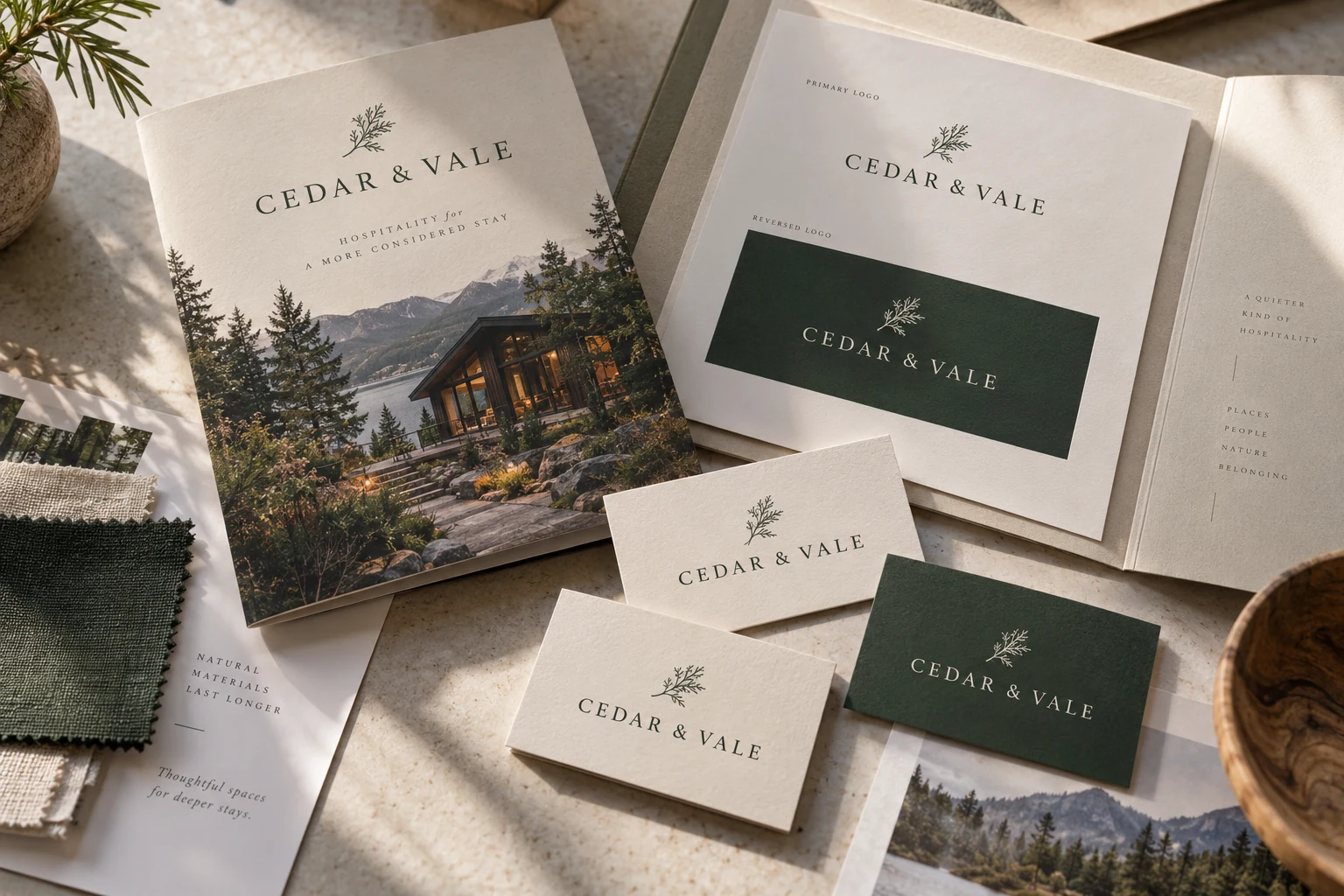
Send your printer the current approved logo and artwork, the job specifications, color references, required fonts or linked assets where licensing permits, and the production export requested for the job. Keep the approval record with those files so everyone works from the same version.
The next print project often starts with a search through old emails: Which logo is current? Is this the dark-background version? Did someone approve the file named “final-final”? A small, well-organized project folder can answer those questions before the designer or printer has to ask.
The folder does not need an elaborate asset-management system. It needs current artwork, useful references, a clear specification and one person who can approve the job. Here is a structure you can reuse for business cards, brochures, apparel and larger printed graphics.
Start with a short project note
Put a read-me document at the top of the folder. Identify the project, finished size, quantity, intended use, delivery requirement and person responsible for approval. If the supplier has provided a template or production specification, include that exact version.
Name the current artwork file in the note. Add any important restrictions, such as a logo that must stay on a light background or a photograph approved for one campaign only. Keep the brief focused on decisions the recipient needs to make.
Separate current assets from the archive
Use a small set of clearly named folders. One possible structure is Start Here, Approved Logos, Color and Assets, Production, and Approval. Put superseded work outside the current delivery folder so it cannot be mistaken for an alternative the printer is supposed to choose.
A folder full of old designs is useful as an archive, but it is a poor production instruction. If an earlier file is included for reference, label it clearly and explain why it is there.
Include the logo variants people actually need
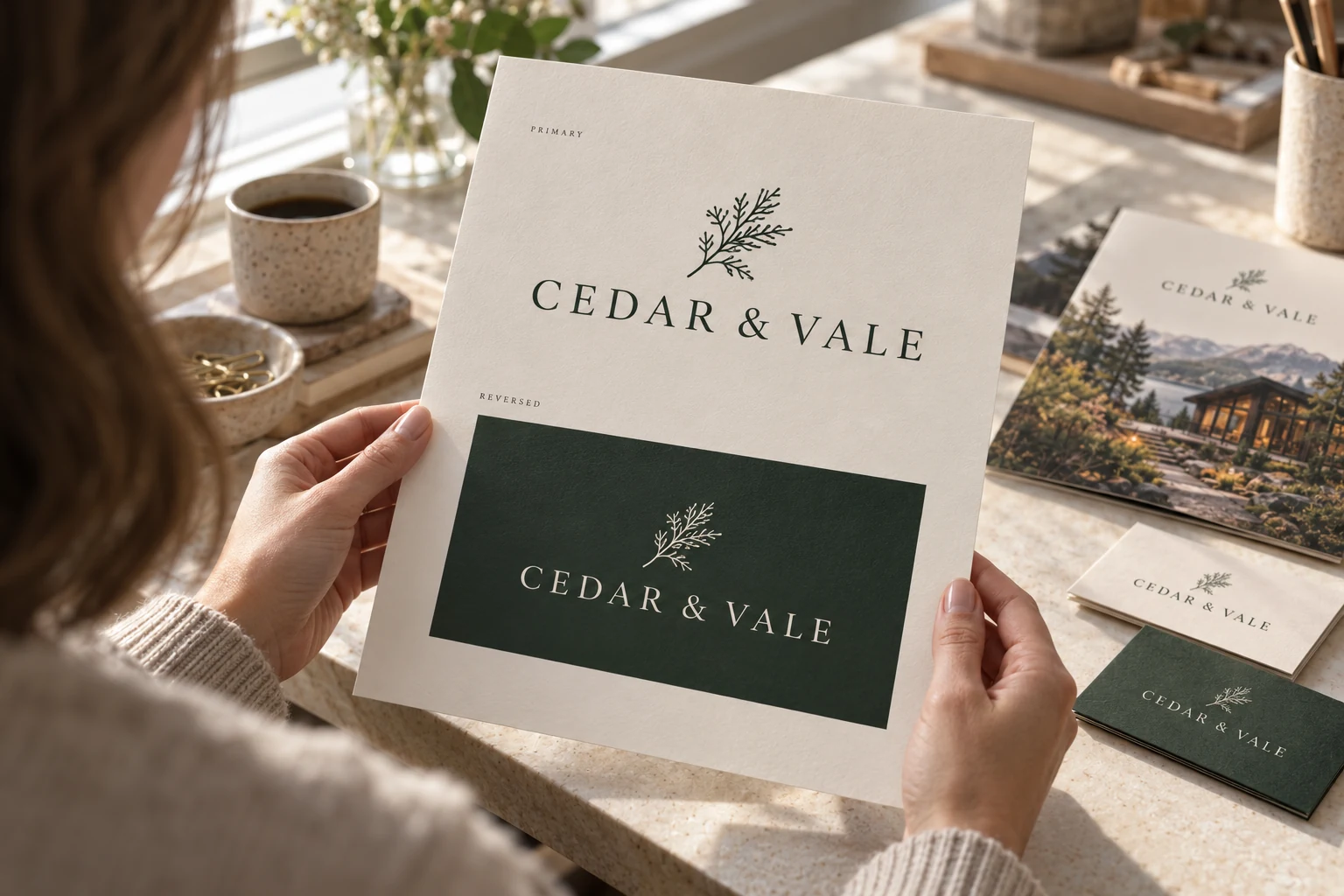
Supply the approved primary logo and any authorized alternatives, such as a one-color mark, reversed version or compact arrangement. Name them by their purpose. Add a small reference sheet showing what each should look like so the recipient can spot the wrong variation quickly.
Ask the designer for a suitable vector original when it exists. A PDF can contain vector artwork, raster images or both. Renaming an image with a different extension does not turn it into editable vector art or make it print-ready. Likewise, a small website image may not contain enough detail for the intended output size.
Before making a new set of variants, check the brand-audit guide and compare the assets already in use. Resolve conflicting logos once instead of asking each supplier to decide which version represents the business.
Give color references context
Include the approved color references and say what they apply to. If you have a previous printed sample that matters, identify it and discuss whether the supplier can use it as a target. A screen preview, paper print, embroidery thread and painted sign can render color differently.
Ask the printer which color setup is appropriate for the selected process and material. Do not promise that one set of numbers guarantees the same appearance across every surface. For color-critical work, agree on the proof or sample process before the full run.
Handle fonts and linked assets carefully
Record font names and weights. Share the actual font files only when the license permits it. Adobe’s font-packaging guidance explains that licensing can limit packaging and that another editor may need their own licensed access. A font being installed on your computer does not automatically give you permission to redistribute it.
Keep licensed photographs, illustrations and other linked files with the project when they are required and allowed to be shared. Include the relevant usage information. Avoid copying unrelated private files into a delivery folder just because they sit beside the artwork.
If the printer requests editable Illustrator files, Illustrator’s Package feature can collect the document, linked graphics and a package report. Check the package for missing items and licensing restrictions. Packaging collects dependencies; it does not certify the design for production.
Keep the production export and approval connected
Use a consistent filename with the project, version and date. The approval note should identify that exact file, the person who approved it and what was approved. If a later edit changes the text, artwork or specification, give it a new version and repeat the affected checks.
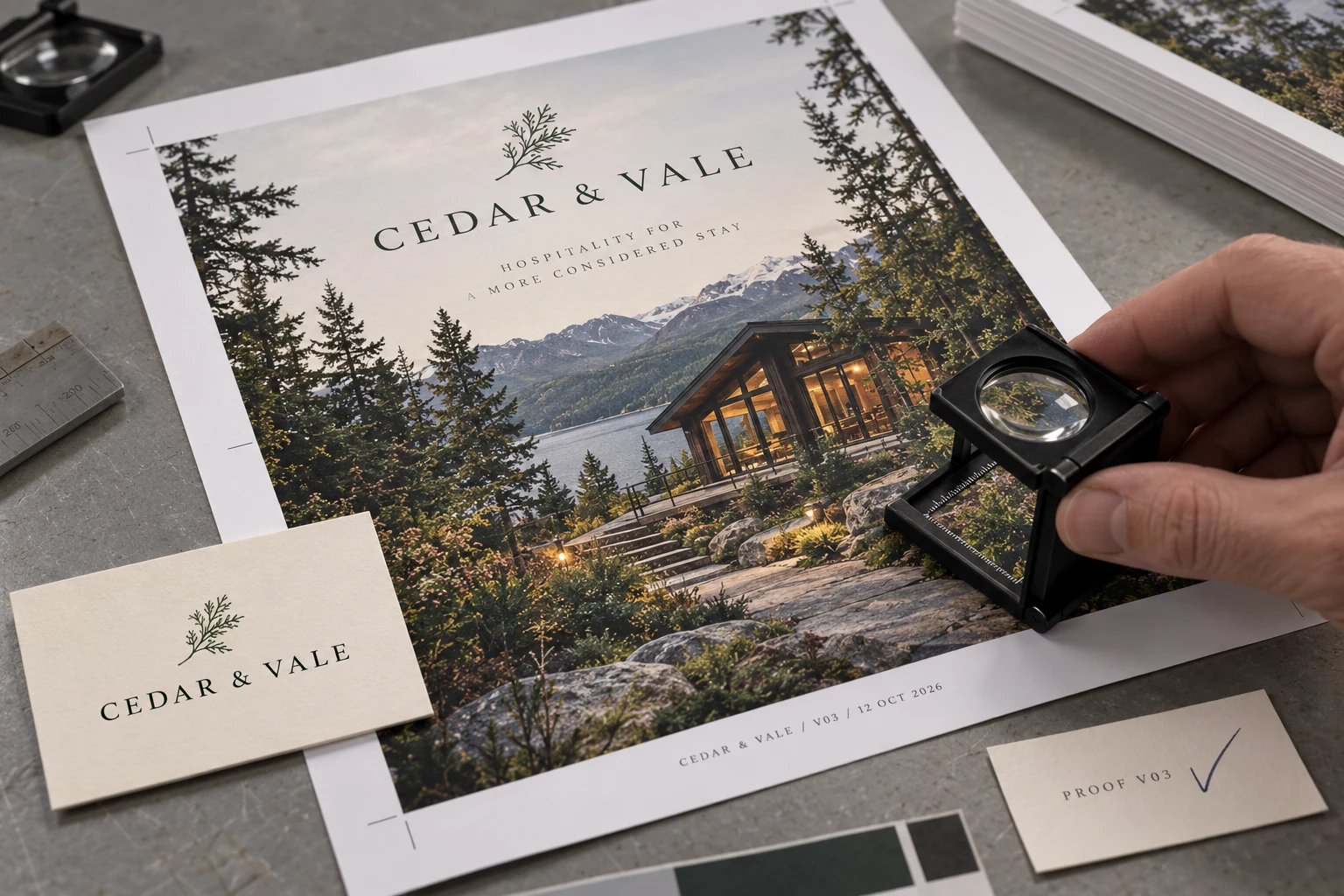
Open the exported file before sending it. Check page count, trim size, missing images, spelling, contact details and visible layout problems. Follow the supplier’s requested bleed, font treatment and export settings for the job. The print-file preparation guide is a useful companion to this folder checklist.
Send your printer one clearly organized folder
Share the current folder through the agreed delivery method and tell the recipient which file is for production, which files are editable sources and which are references. Confirm that they can open the files and have no missing dependencies before treating the handoff as complete.
When working with a design and marketing team, include the approval contact and the print specification from the beginning. A clear handoff leaves more time for the actual design decisions and less time searching for the latest logo.
Images: AI-generated concepts for fictional businesses, not completed customer projects.


